In this tutorial, we will show you how to connect to your FXVM VPS using Remote Desktop Program (RDP) from a Mac Computer.
You will receive an email after completing the payment and activating your VPS. You need to take note of the following:
- Your VPS/Server IP address,
- Username and Password.
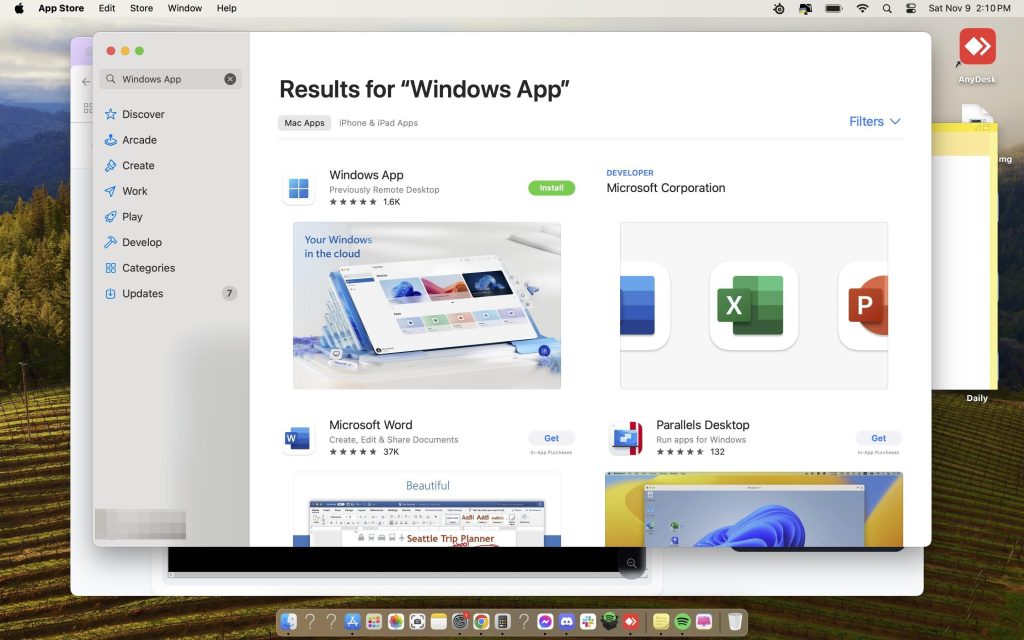
1. Install the Windows App from the App Store.
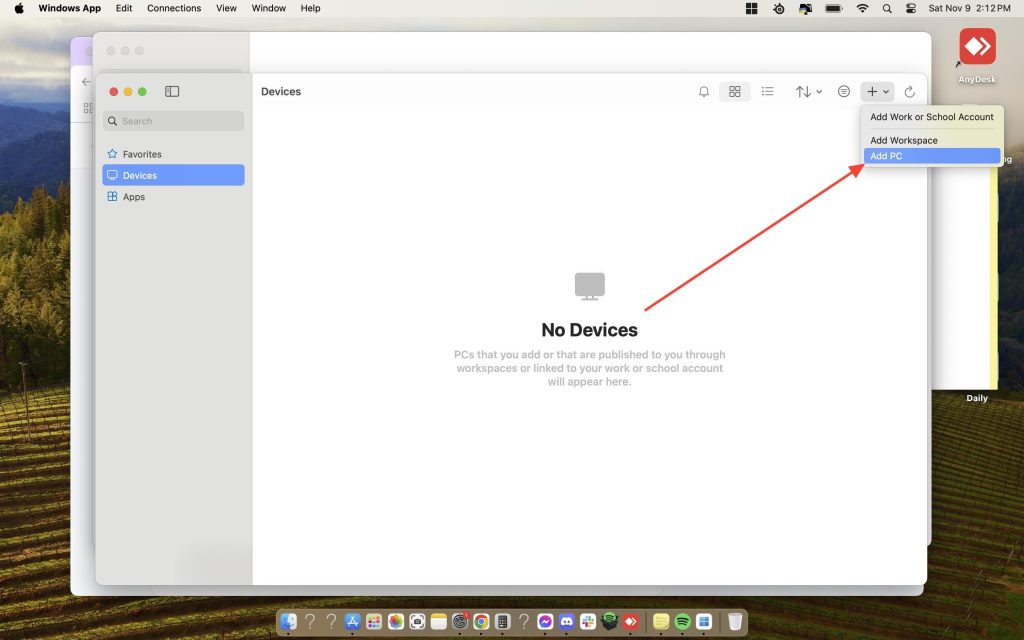
2. Click on Open once the application is installed, once it opens click on “Add PC“:
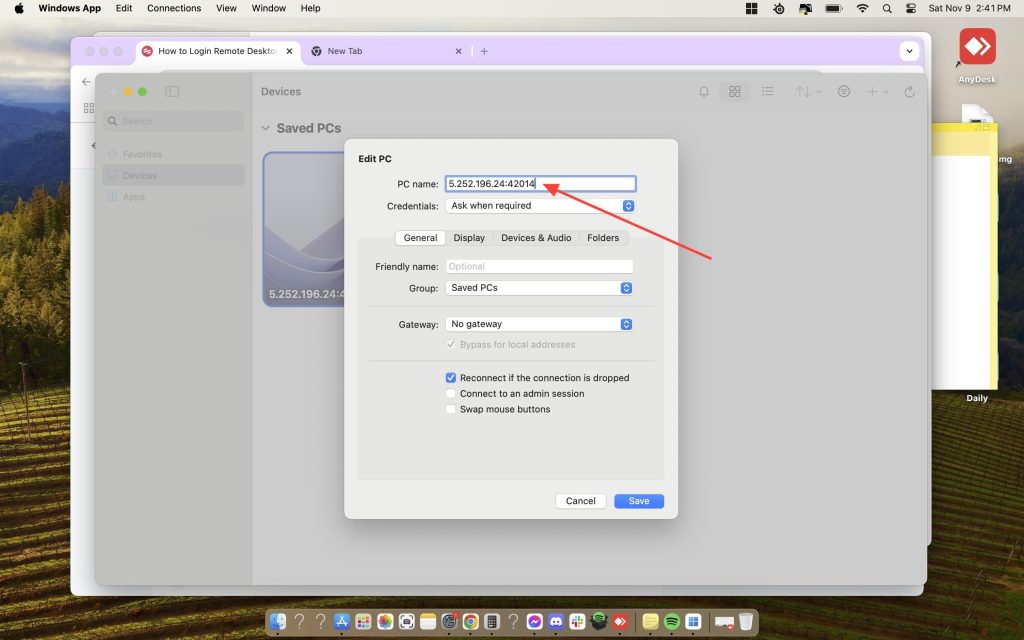
3. Enter the IP:PORT in the field PC name and click on Add:
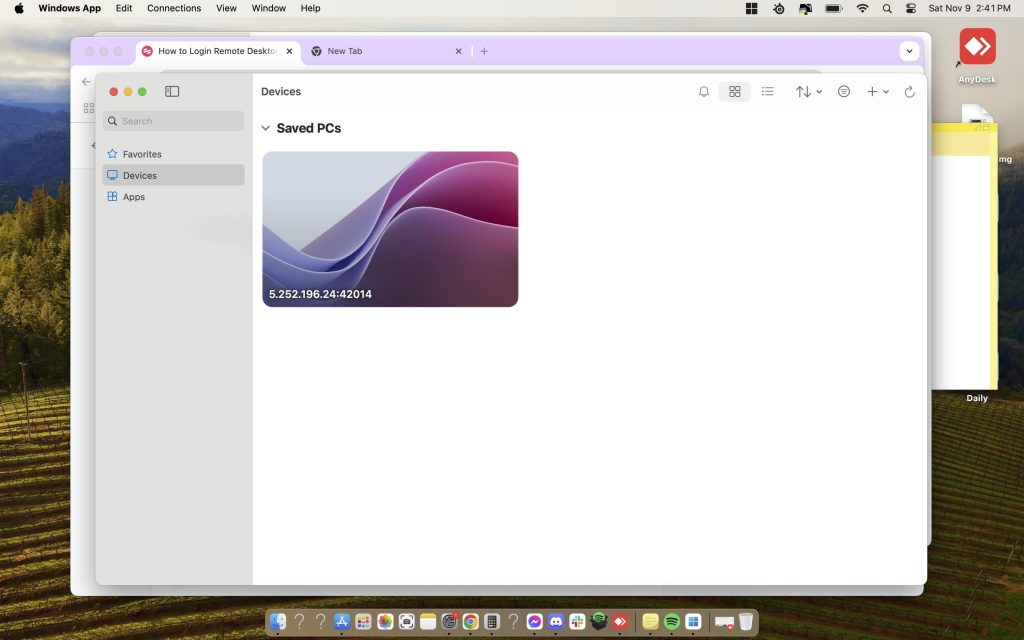
4. Double-click on the new connection entry to connect to your VPS:
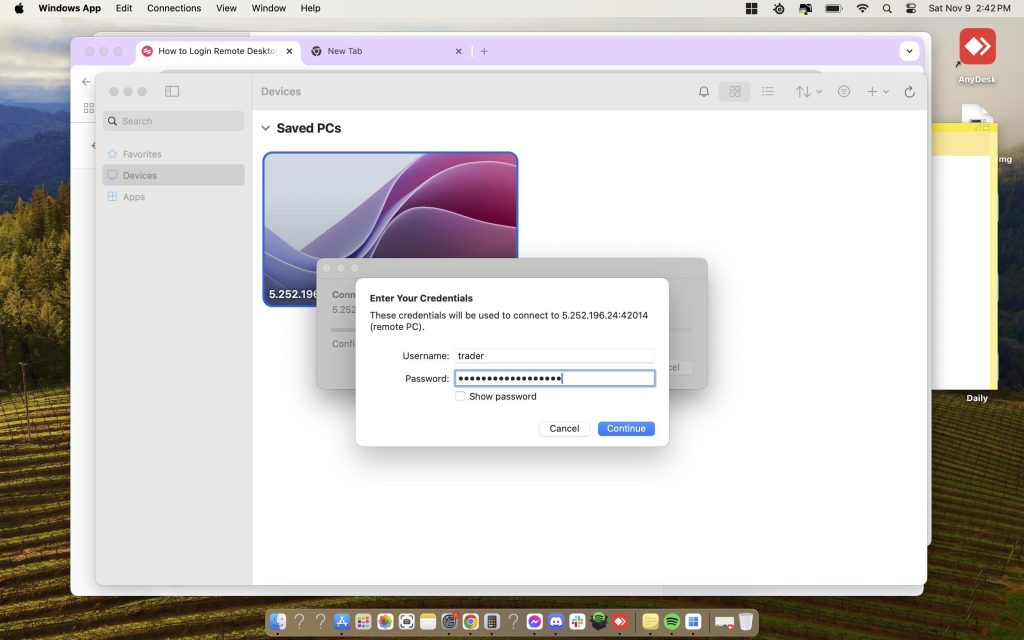
5. There will be a loading screen and then you will be asked for your VPS credentials (use the username and password from the email we sent):
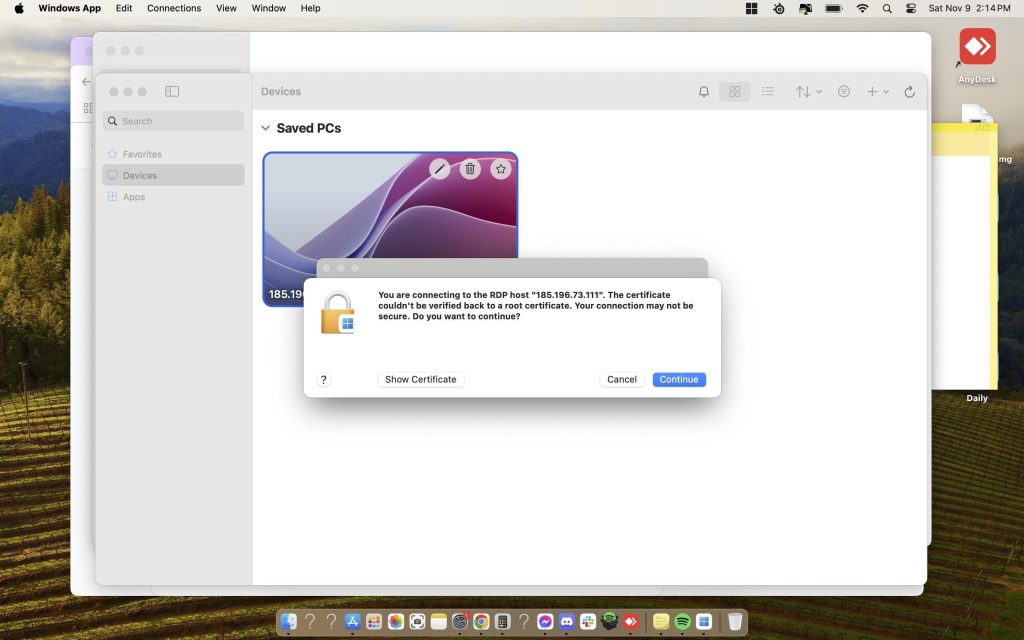
6. You’ll get a certificate warning. Click ‘Continue‘:
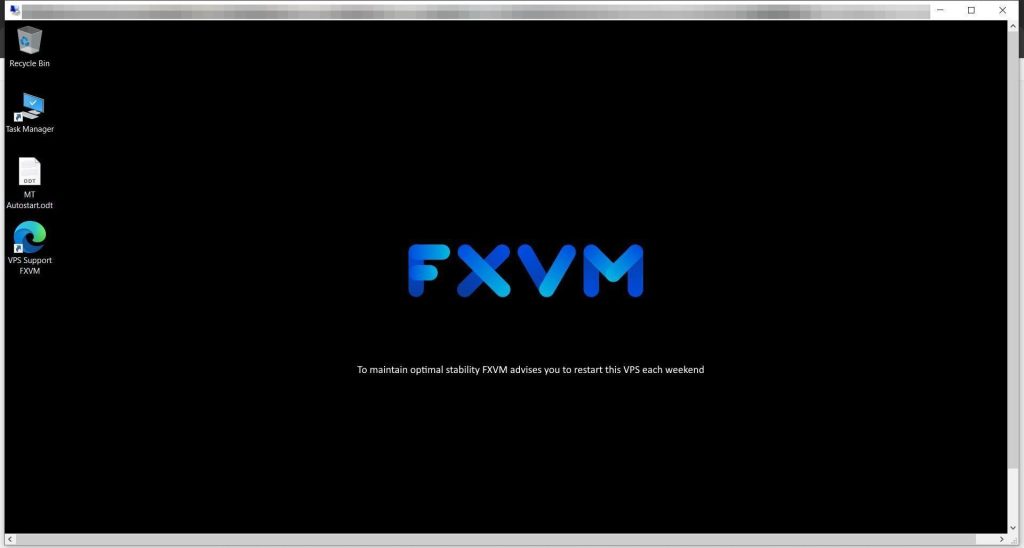
7. You should now be presented with a Windows Desktop with the FXVM logo – this is your VPS desktop:
Now you will need to install your Broker’s MetaTrader 4 (or other trading platforms). If you need help installing MetaTrader 4 (MT4), use this guide:
How to Install MetaTrader 4 (MT4) platform on your Forex VPS
If you need help setting up your VPS on your Windows 10 PC or Android device, use these guides:
How to Connect to Your VPS From Your Windows 10 PC
How to Connect to Your VPS from your Android Device (Mobile/Tablet)
If you have any further inquiries, please contact us via live chat or email support@fxvm.net.
Thank you!


