In this tutorial, we will show you how to manage your FXVM VPS in your Client Portal.
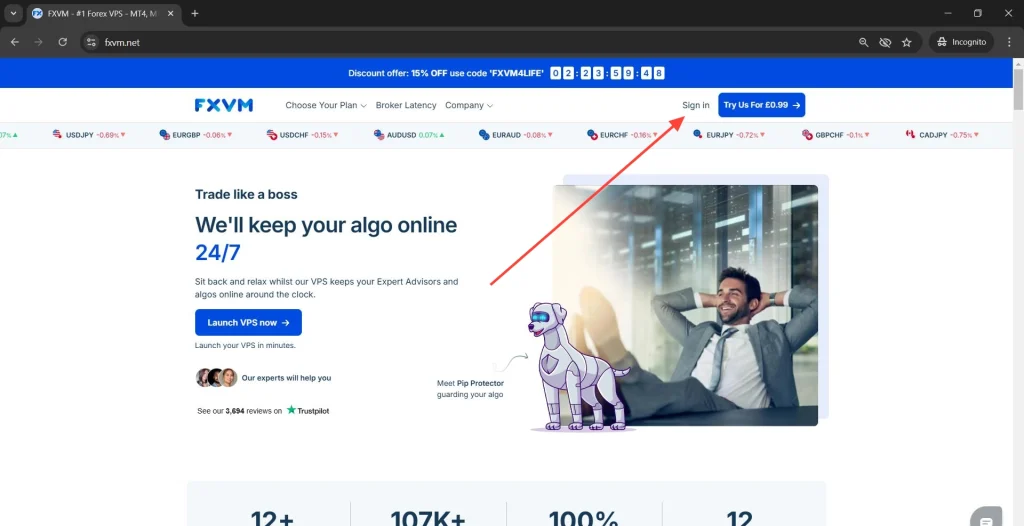
1.Click on Sign In
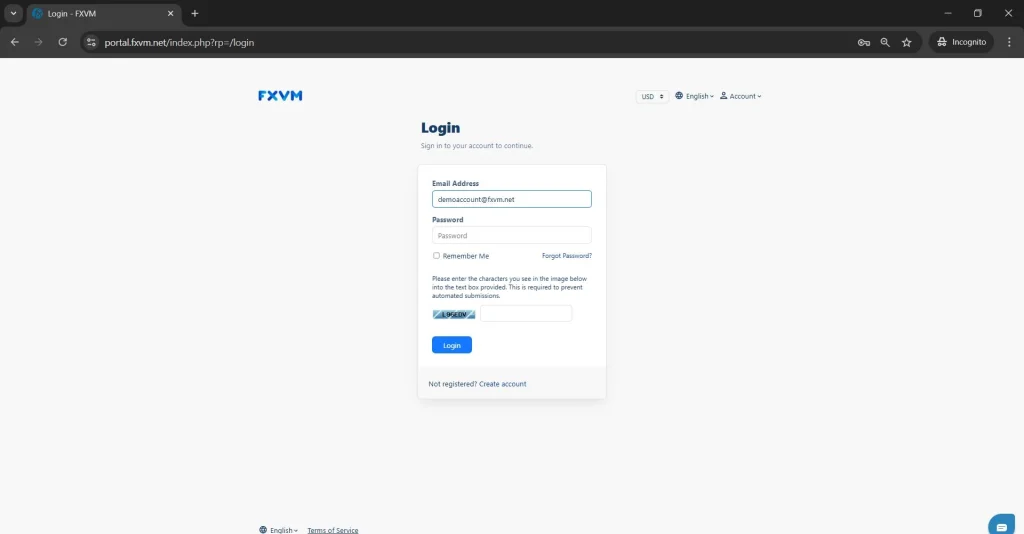
2.Login to your Client Portal using the credentials you used when you register
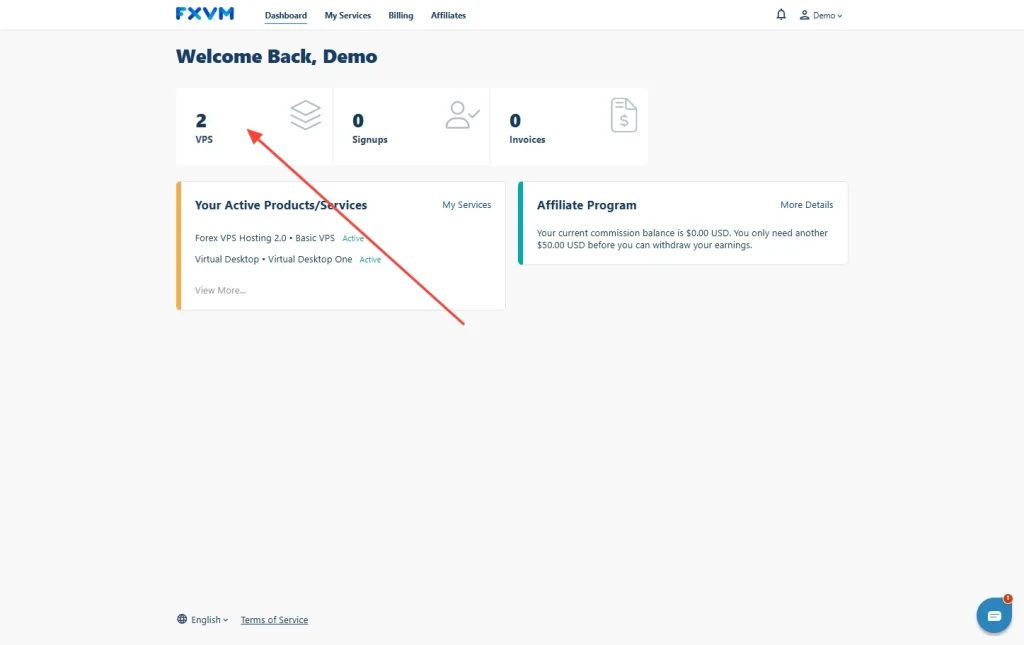
3. Click the VPS tab
4.Choose which VPS you want to access
- For multiple plans, you will see the IP address of each VPS below it
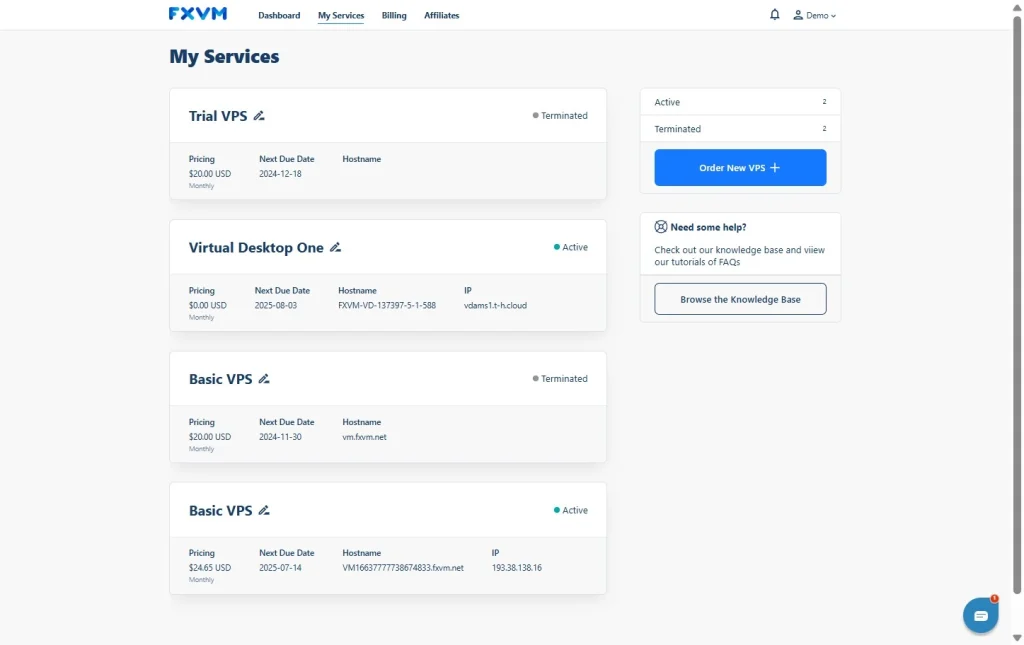
5.You can find the amount you are paying for the VPS and when the next due date is along with your payment method.
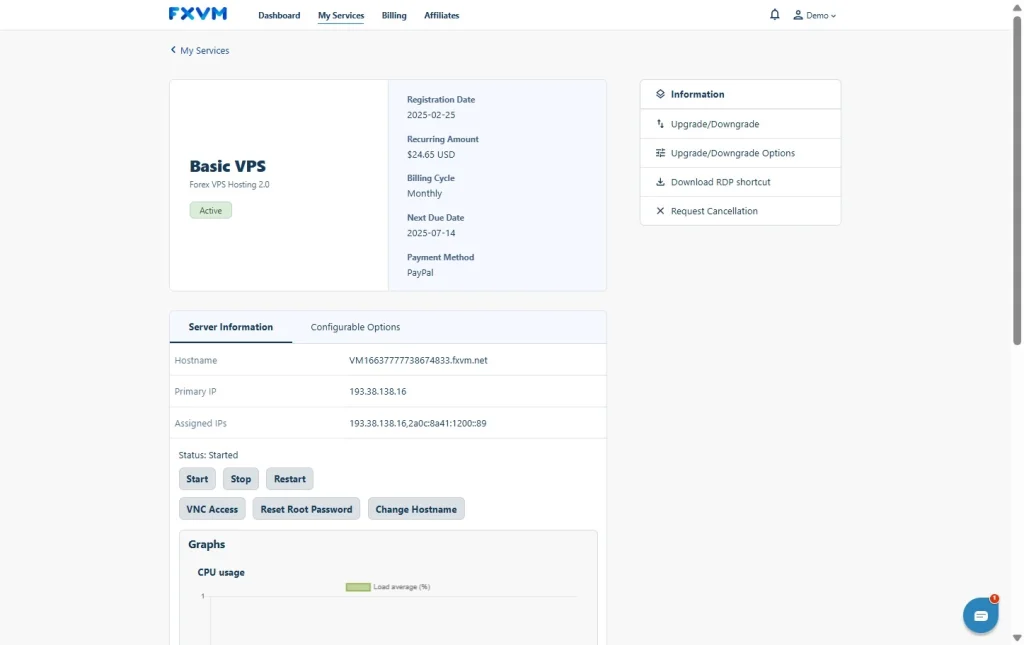
6.Server Information
Start – To start the VPS if it is offline
Stop – To shutdown the VPS
Restart – To reboot the VPS
VNC Access – To access the VPS using the internet browser
7.Configurable Options is where you can find the VPS specs
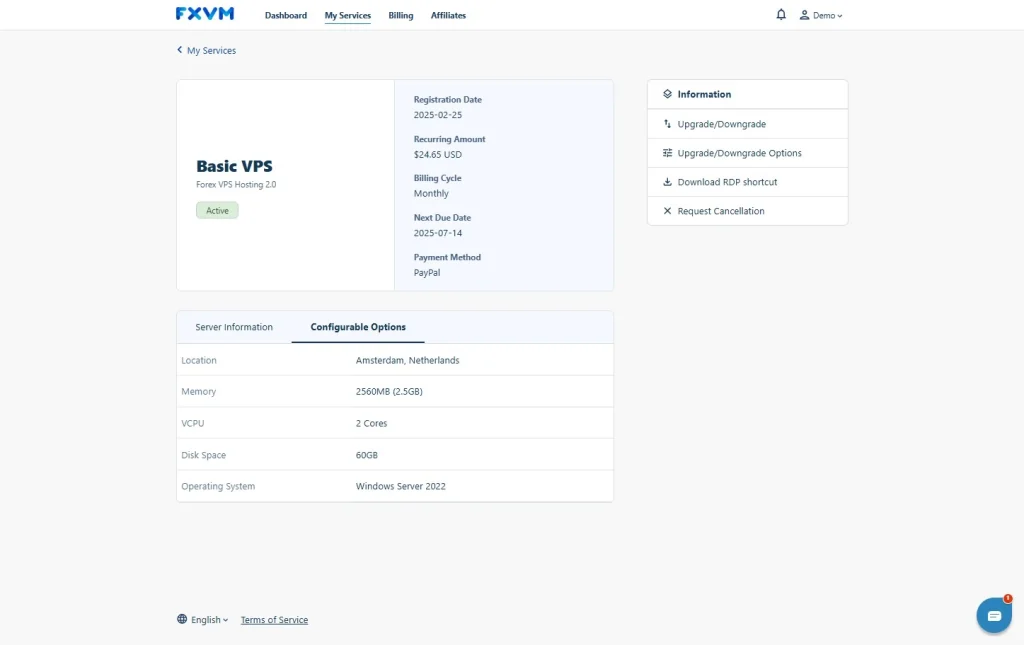
- To access the VPS using the internet browser, click VNC Access
-
- Click the link on How to Access your VPS using VNC (HTML VNC)


