The MetaTrader AutoStart tool helps keep your trading environment running automatically after your VPS restarts.
Once configured, it does two things:
- Enables Windows AutoLogon, allowing your Windows account to sign in automatically.
- Automatically launches your selected MetaTrader 4 (MT4) and/or MetaTrader 5 (MT5) terminals after Windows starts.
This means your trading terminals can come back online automatically after a planned restart, unexpected reboot, or server reset — without requiring you to manually log in.
The tool automatically detects the MetaTrader installations available on your VPS, so you can choose exactly which terminals should start.
Important security notice: AutoStart stores the necessary Windows sign-in configuration so the account can log in automatically. Anyone who gains access to the VPS console or an appropriate remote session while the machine is waiting at the login screen may be able to access the Windows desktop without entering the account password. Only enable this feature if you are comfortable with this security trade-off.
Part 1 – Enable AutoStart
Step 1: Open the AutoStart Setup Tool
Launch the MetaTrader AutoStart Setup tool.
Under Target User, your Windows account username should already be selected.
Below this, you’ll see Select MetaTrader Terminals to Auto-Start.
The tool automatically scans the VPS and displays the MT4 and MT5 installations it finds. If you have terminals from multiple brokers, they may all appear in this list.
Select the checkbox beside each terminal you want to launch automatically.
Leave any terminal you don’t want to start automatically unchecked.
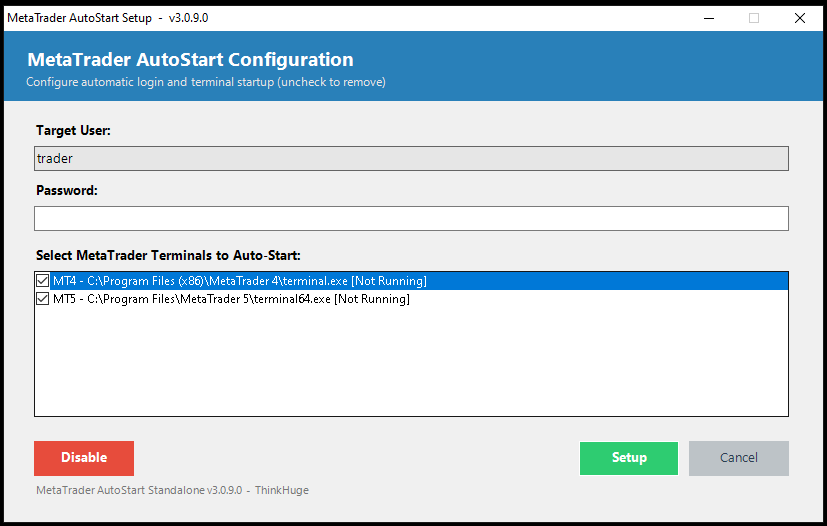
Example: If your VPS has two MT4 terminals and one MT5 terminal installed, all three may appear in the list. You can choose only the terminals you need.
Step 2: Enter Your Windows Password
Enter the password for the Windows account shown under Target User.
This password is required to configure Windows AutoLogon.
After entering the password:
- Select Setup.
- Wait for the confirmation message.
- Review the username and number of startup entries created.
- Click OK.
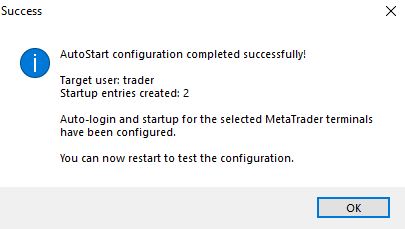
From this point forward, Windows will automatically sign in to the selected account after a restart, and your chosen MetaTrader terminals will launch afterward.
Step 3: Review Your Configuration
You can open the AutoStart Setup tool again whenever you want to check or modify your configuration.
Terminals that have already been configured will be marked (Configured).
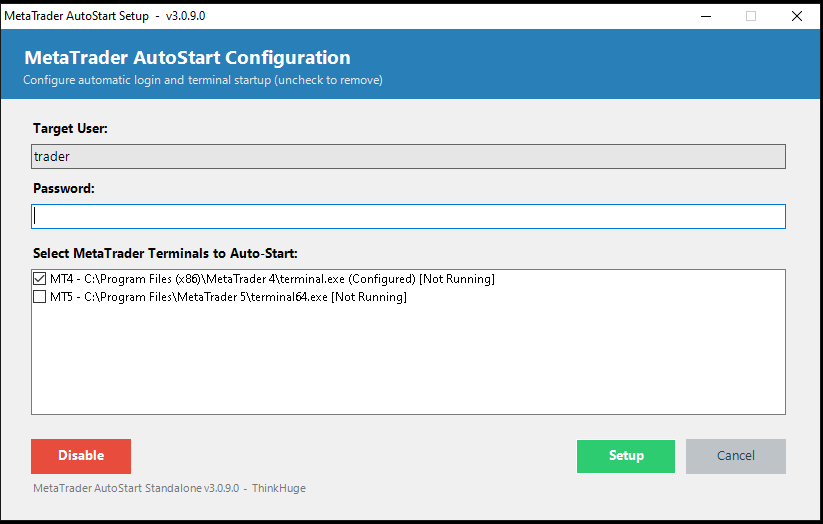
To change your selection:
- ☑ Tick a terminal to enable automatic startup.
- ☐ Untick a terminal to stop it from starting automatically.
- Click Setup to save the changes.
Part 2 – Disable AutoStart
If you no longer want automatic Windows sign-in or automatic MetaTrader startup, you can disable the feature using the same tool.
Step 1: Select “Disable”
Open the MetaTrader AutoStart Setup tool.
Click the red Disable button at the bottom-left.
A warning message will appear.
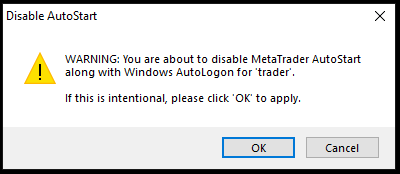
Read the warning and click OK to continue.
Select Cancel if you want to keep AutoStart enabled.
Important: Disabling AutoStart also disables Windows AutoLogon. After the next VPS restart, you’ll need to manually enter the Windows username and password.
Step 2: Confirm the Changes
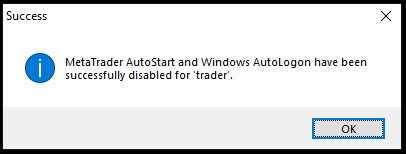
After disabling the feature, a confirmation message will appear indicating that both:
- MetaTrader AutoStart
- Windows AutoLogon
have been disabled.
Click OK to close the message.
Quick Reference
What you want to do |
Action |
|---|---|
| Automatically sign in and launch MetaTrader after a restart | Enable AutoStart and select your terminals |
| Stop one MetaTrader terminal from launching | Untick the terminal and select Setup |
| Completely disable automatic startup and sign-in | Select Disable and confirm |