When you access your VPS through Remote Desktop (RDP), you don’t need to shut down the server every time you’re finished using it. If you’re using your VPS for MT4, MT5, Expert Advisors (EAs), or other applications that need to remain active, the safest approach is usually to disconnect your RDP session and leave the VPS running.
Disconnect From a Full-Screen RDP Session
When Remote Desktop is using your entire screen, you may not immediately see the normal Windows window controls.
Step 1: Move your mouse to the top
Move your mouse cursor all the way to the top edge of your screen. The Remote Desktop connection bar should appear.
Step 2: Locate the Close button
Look toward the right side of the Remote Desktop bar. You’ll see the window controls, including the X (Close) button.
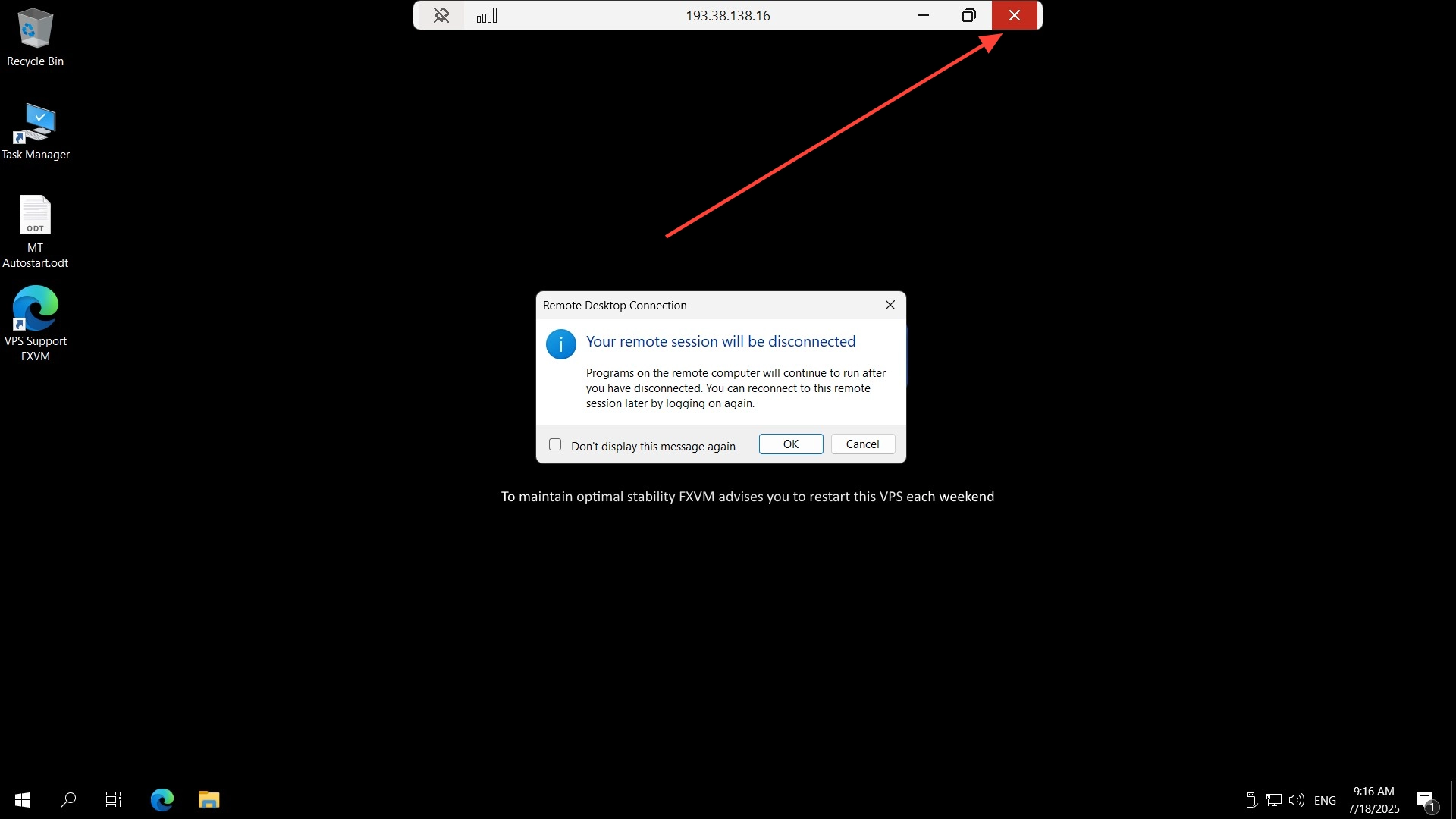
Step 3: Click X
Click the X to close your Remote Desktop connection. Your VPS will remain online.
You are disconnecting your computer from the VPS, not turning off the VPS.
Disconnect When RDP Is in Windowed Mode
If you’re using Remote Desktop in a smaller window, the process is even simpler.
Step 1: Find the RDP window
Locate the Remote Desktop window on your desktop.
Step 2: Click the X
Click the X in the top-right corner of the Remote Desktop window.

Step 3: Leave the VPS running
Once the RDP window closes, your connection has been disconnected. There’s no need to shut down the VPS.
Disconnect via Windows Start Menu
- Click the Windows Start button.
- Click the Power icon.
- Select Disconnect.
You will see options such as:
✅ Disconnect – Your computer stops connecting to the VPS, but the VPS stays online and your applications can continue running.
❌ Shut Down – The VPS itself is turned off, so anything running on it will stop.
⚠️ Restart – The VPS temporarily goes offline while it reboots. Applications will also stop during the restart.
If your goal is simply to leave the VPS running while you disconnect, you don’t need to use these options.
What About MT4 or MT5?
If you’re using your VPS for automated trading, this distinction is especially important.
For example: You have MT5 open and your EA is running. You finish checking your trades and want to leave.
Recommended
MT5 running → Disconnect RDP → VPS stays online → MT5/EA can continue running
Not recommended
MT5 running → Shut Down Windows → MT5 closes → EA stops
Your trading setup may therefore continue operating after you disconnect from RDP, as long as the VPS remains online and the trading terminal and EA are configured to keep running.
Need to Access the VPS Again?
No problem. Simply open Remote Desktop Connection again and connect to your VPS.
You’ll be able to access your VPS and continue working from where you left off, provided the VPS and your applications are still running.
Quick Reminder for Traders
Before disconnecting, check that:
☑ Your EA is running and enabled
☑ Your trading setup is ready
☑ The VPS is online