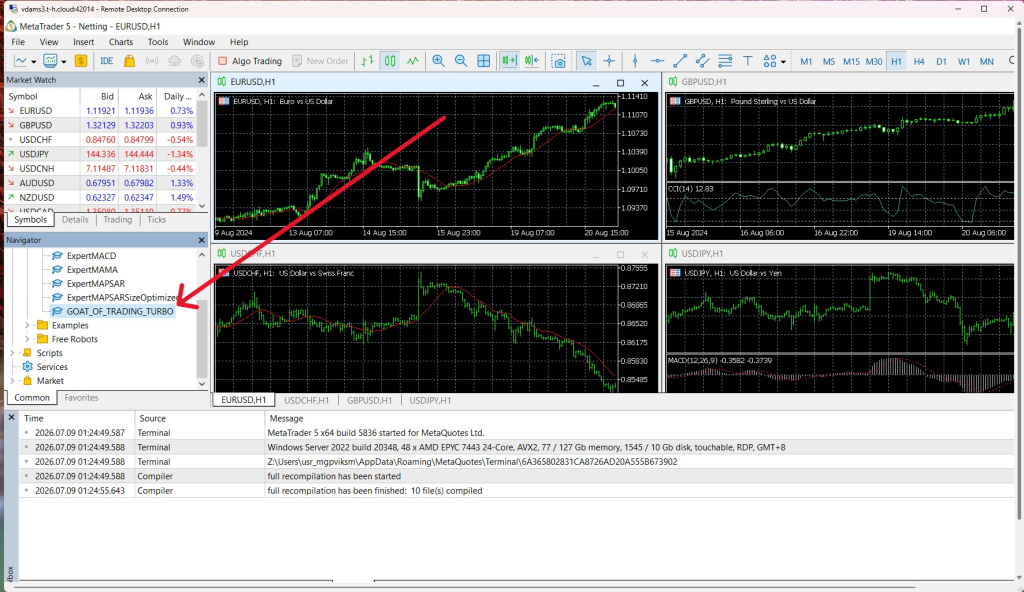
In this tutorial, you will learn how to copy your trading bot to the FXVM Virtual Desktop
This special plan is designed exclusively for running a single MT4 or MT5 platform, making it a cost-effective option for one live trading account or a simple EA without external programs. Please note that browser access is not available, and for security reasons, third-party EA DLL files are blocked by default. Only myfxbook.dll is supported.
You will receive an email after completing the payment and activating your FXVM VPS/Server. You need to take note of the following:
Your FXVM VD/Server IP address (Hostname: port),
Username and Password.
Connection Configuration
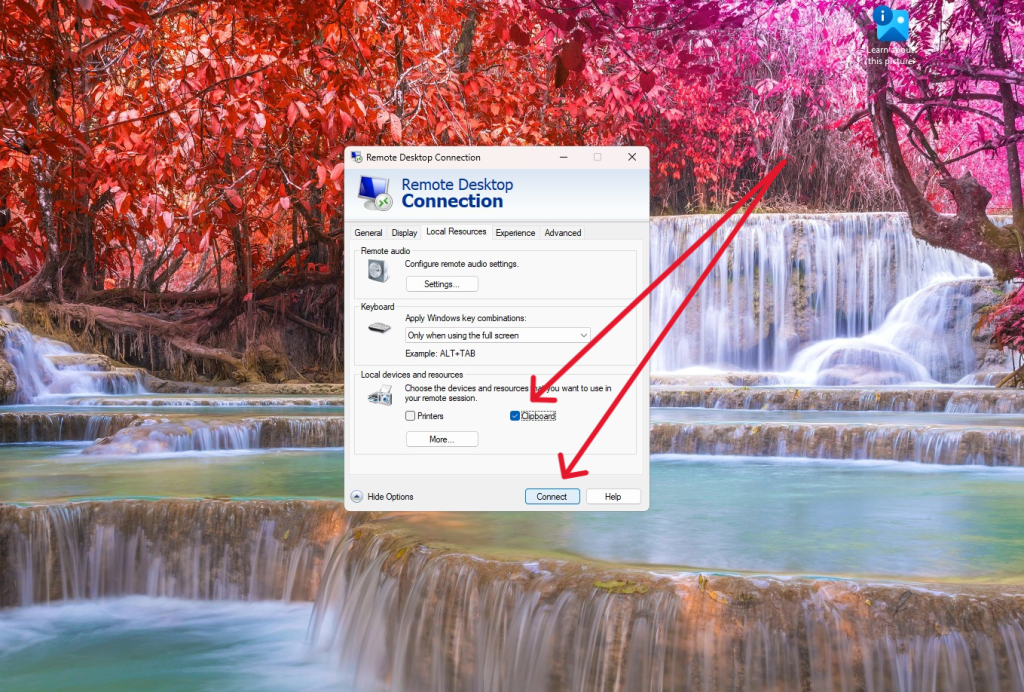
1. Launch Remote Desktop Connection. Then click Show Options
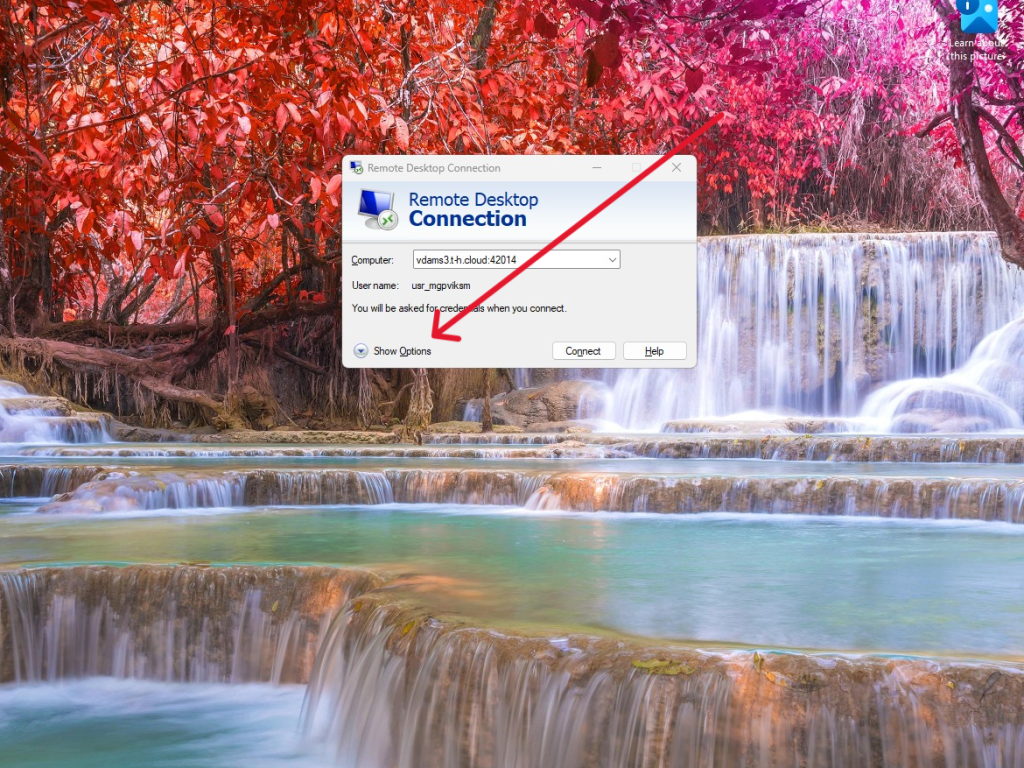
2. Go to Local Resources and enable Clipboard. Then click Connect to initiate the session.
File Preparation
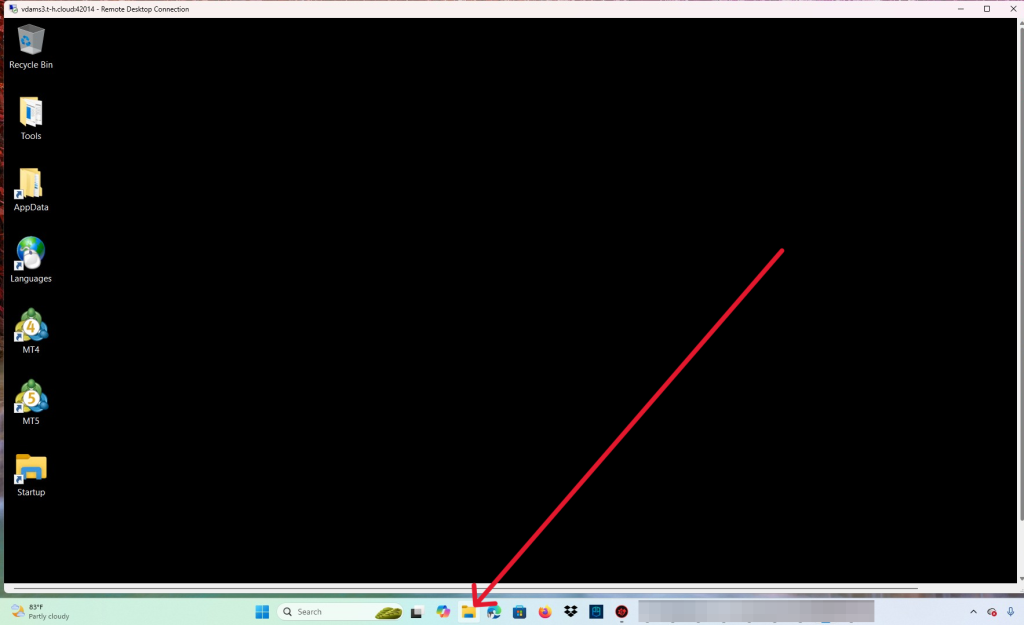
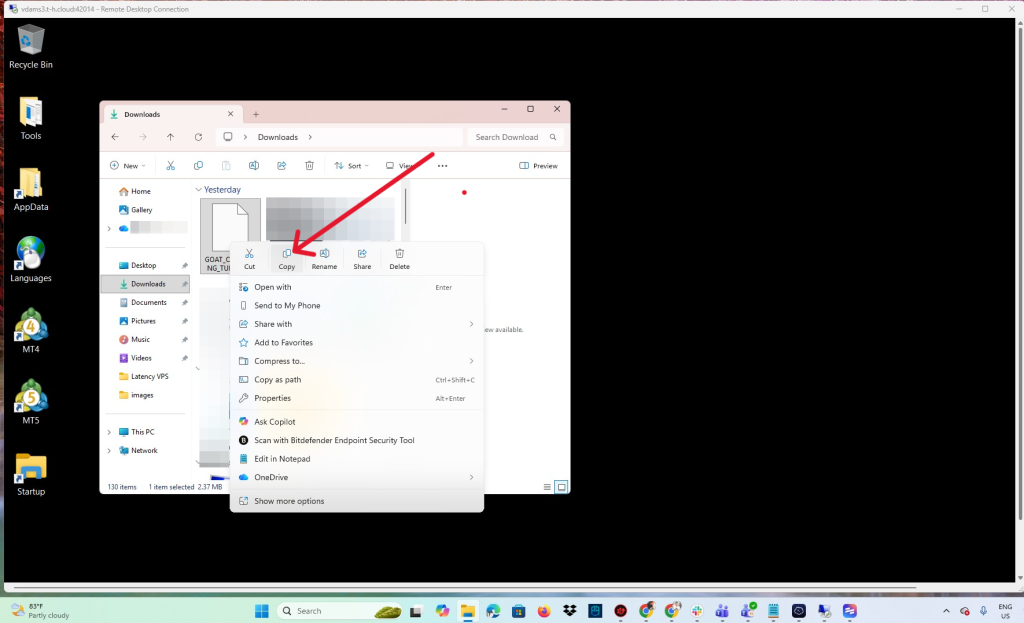
3. Once connected to your Virtual Desktop, ensure that you are on Window view and not Full screen view. Then locate your PC folders and find the EA that you will use.
4. Once found, right-click then Copy
Applying the EA to your MetaTrader
5. Go back to your Virtual Desktop screen and open the MetaTrader you will use.
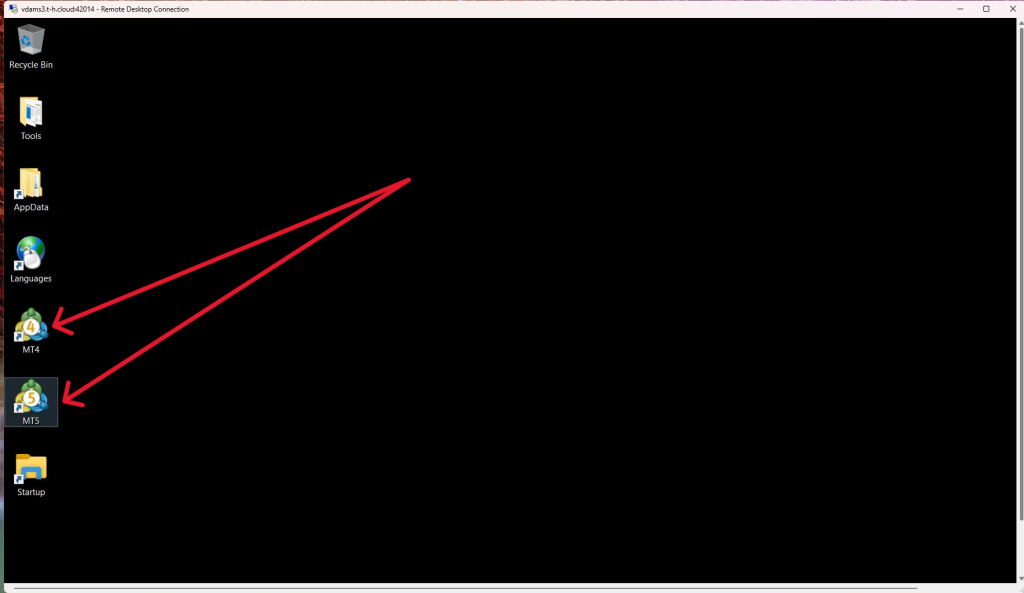
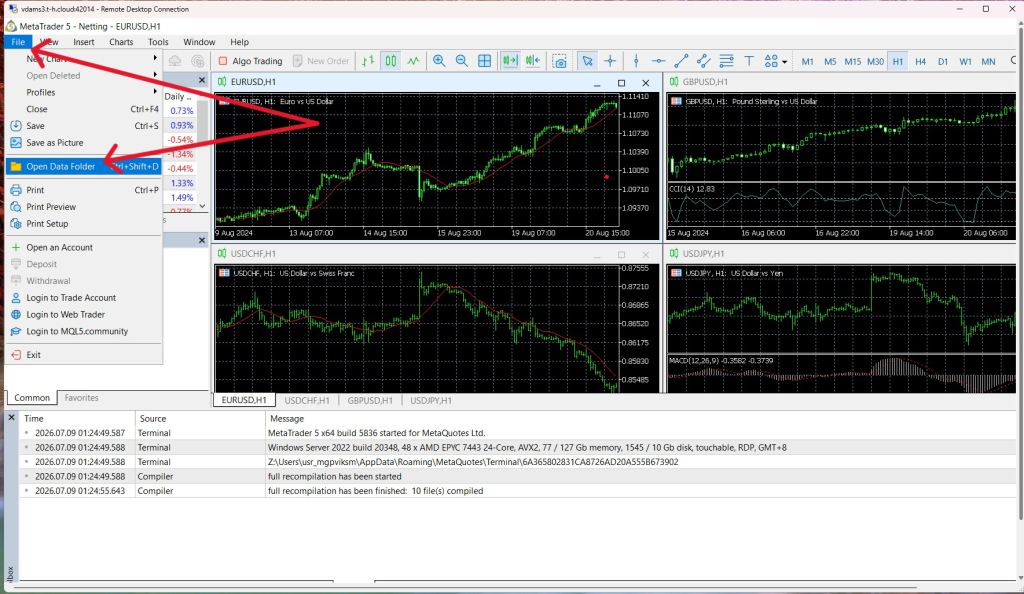
6. Navigate to File and select Open Data Folder.
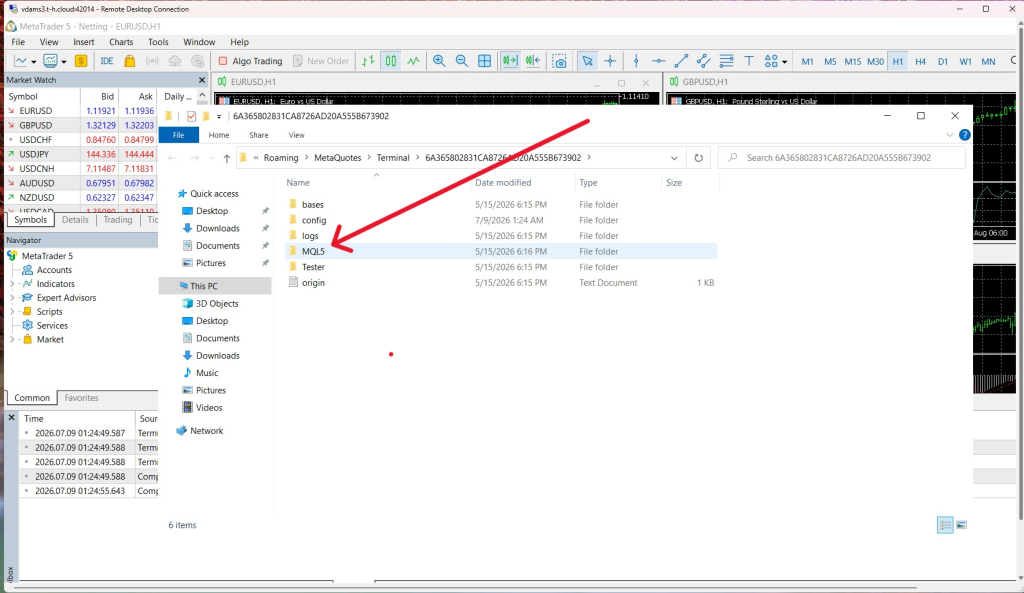
7. Go to MQL5 folder (MQL4 if you are using MT4)
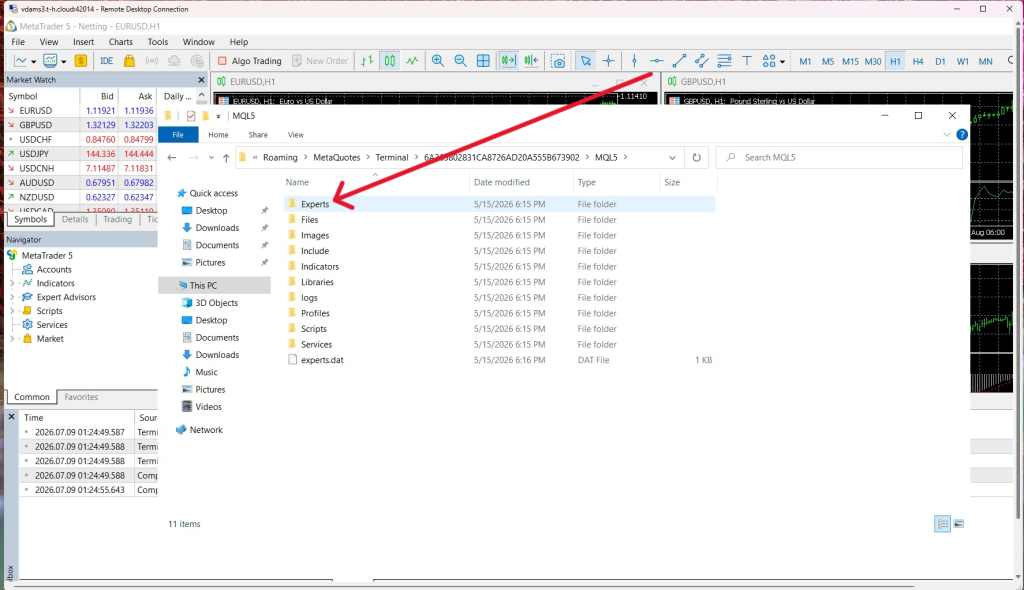
8. Go to the Experts folder
9. Go to the Advisors folder
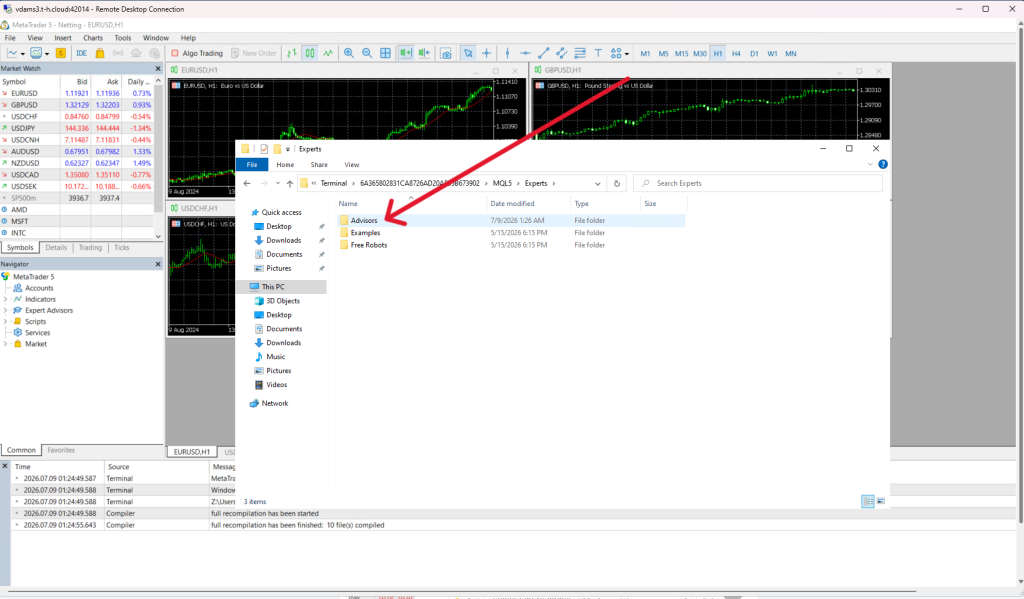
10. Then paste the copied file into the Advisors folder.
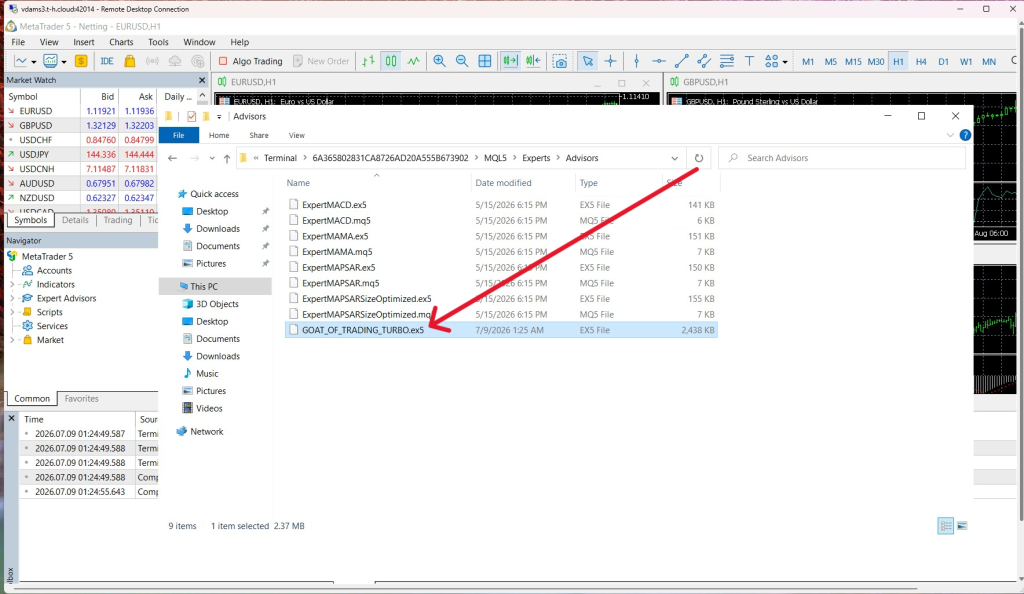
11. Then go back to the MetaTrader Navigator, right-click and Refresh
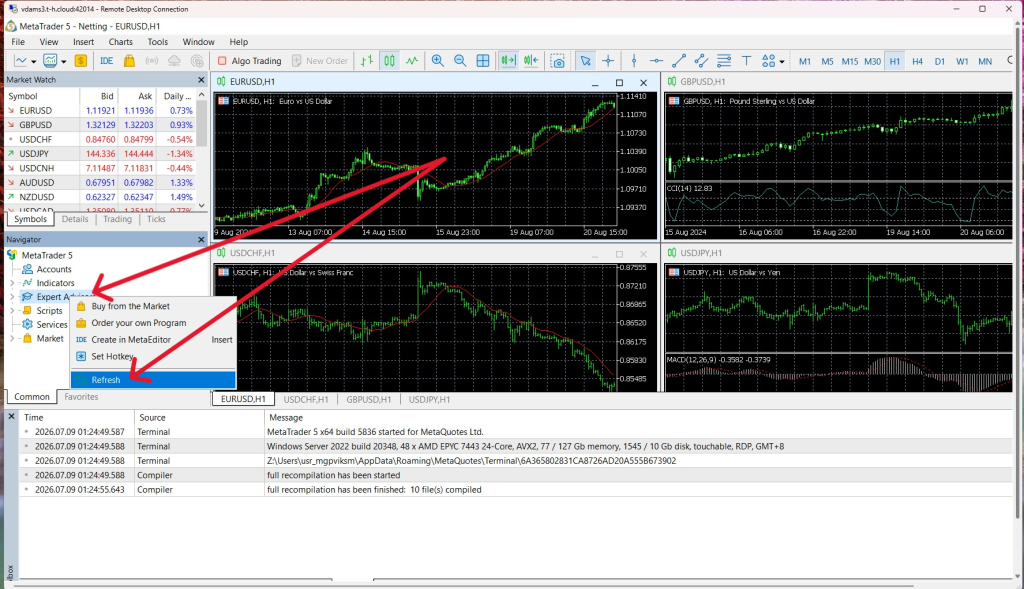
12. The EA should appear, which you can now use in your charts