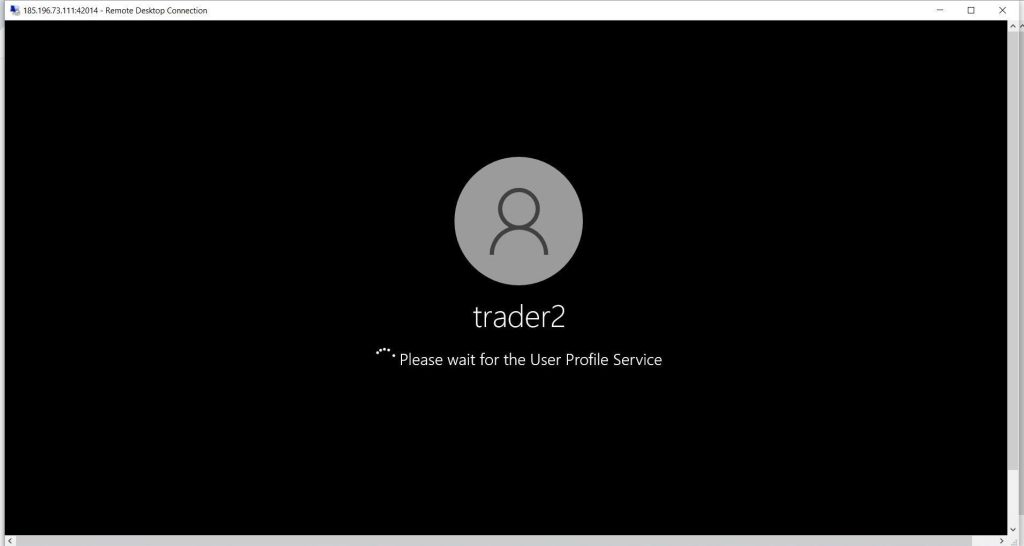
In this tutorial, we will show you how to enable the “trader2” user account in your virtual machine.
Take note that you both user accounts will share the same VPS resources so it is advisable to do this on bigger plans with a lot of resources
1. Login to your server then go to START menu and Type Computer Management
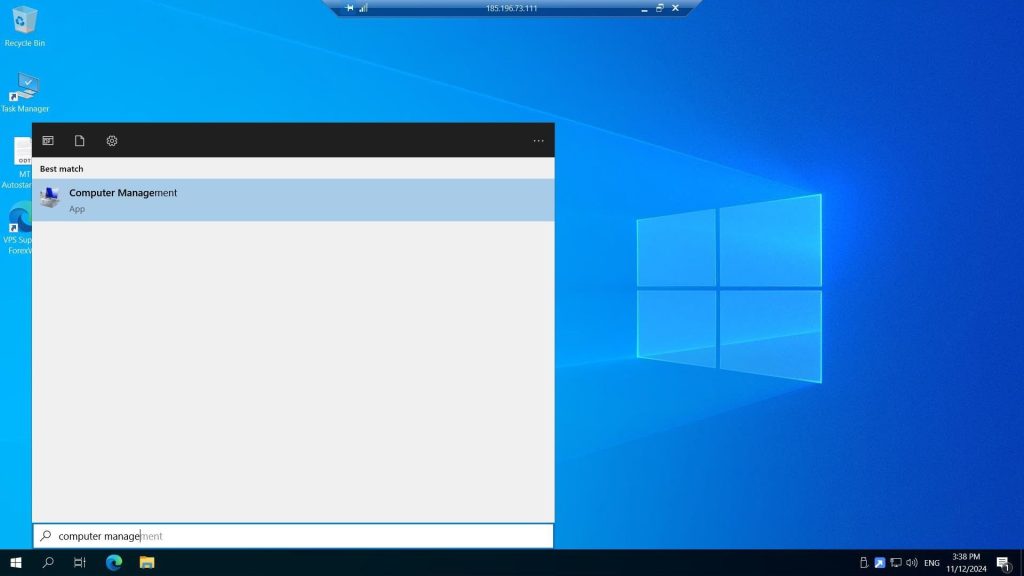
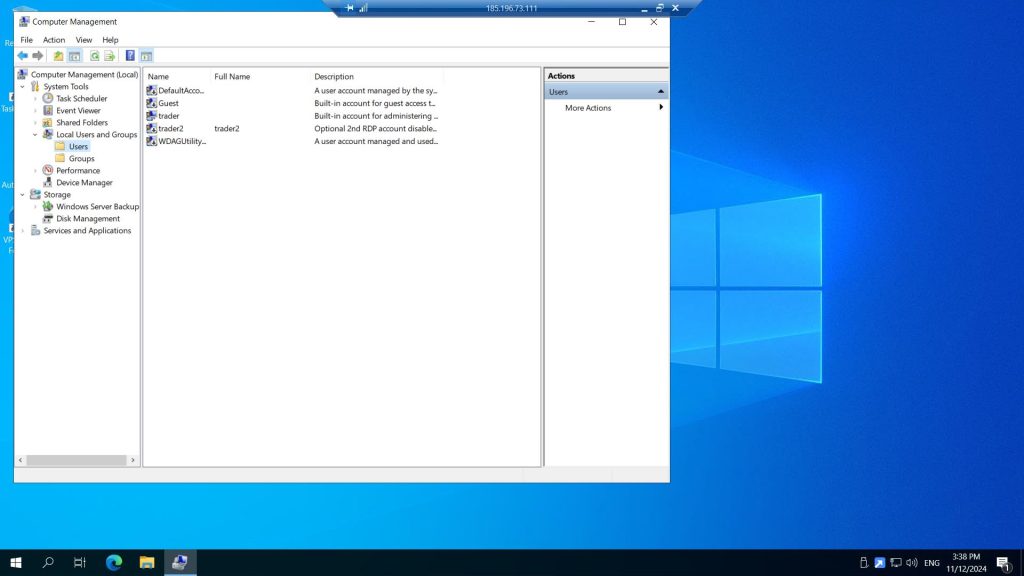
2. Click Local User and Groups then click on Users
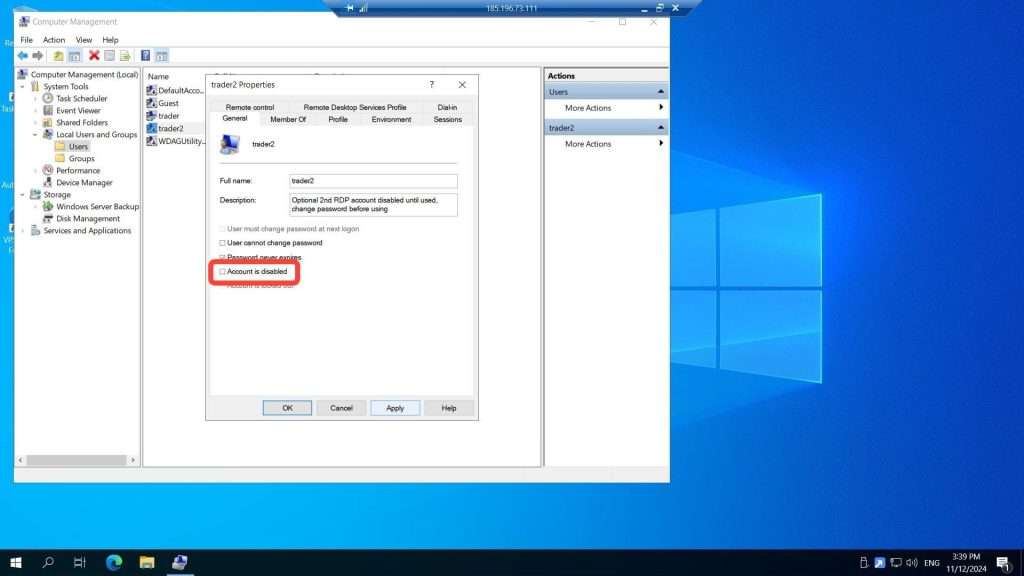
3. Double click on trader2, uncheck the Account disabled to Enable it then click Apply then OK
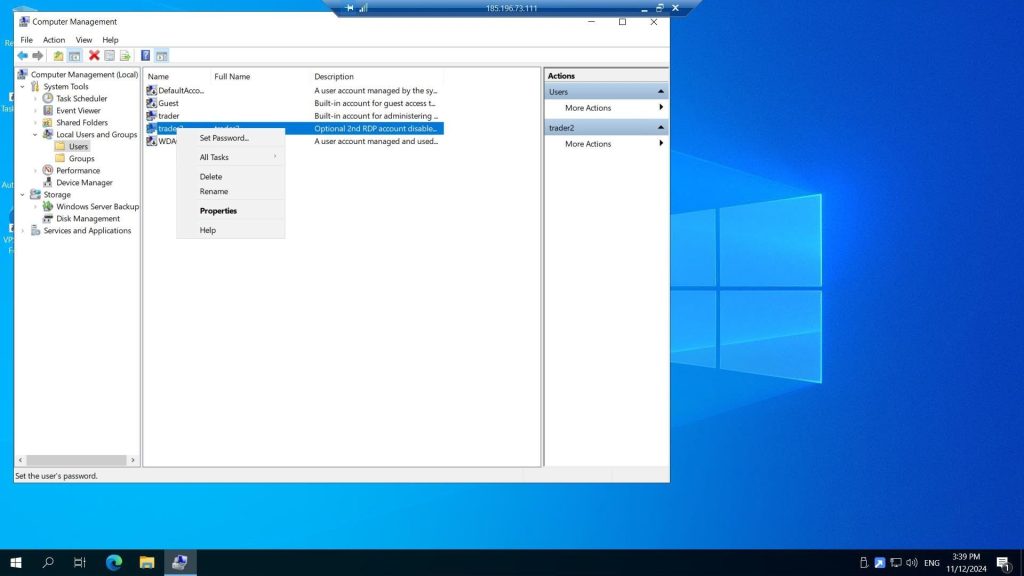
4. Right click on trader2 then Set Password then click Proceed to change the password
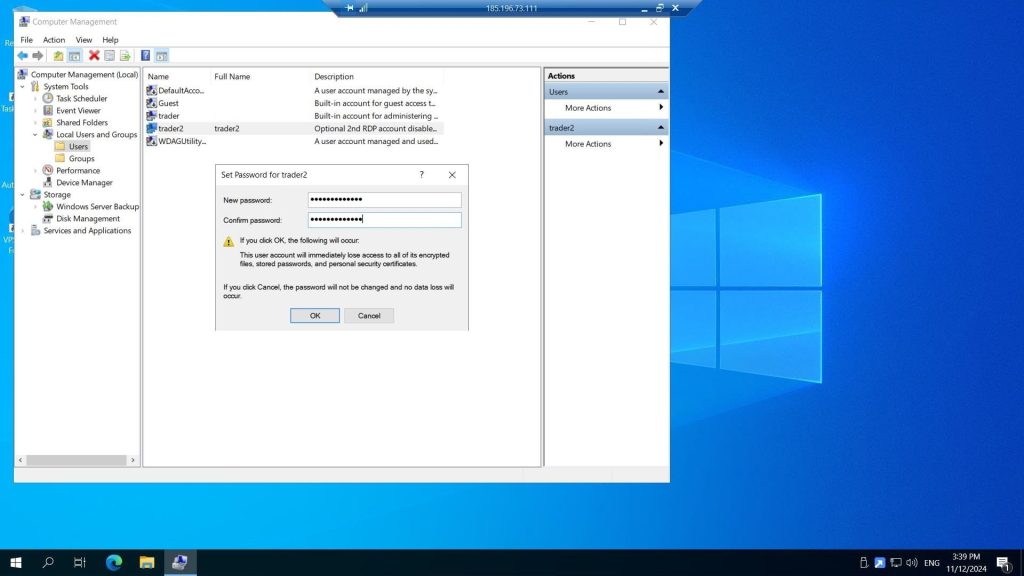
5. Type the New Password twice then click OK
6. Connect on RDP using the same IP:Port and type trader2 as the username and the password you set
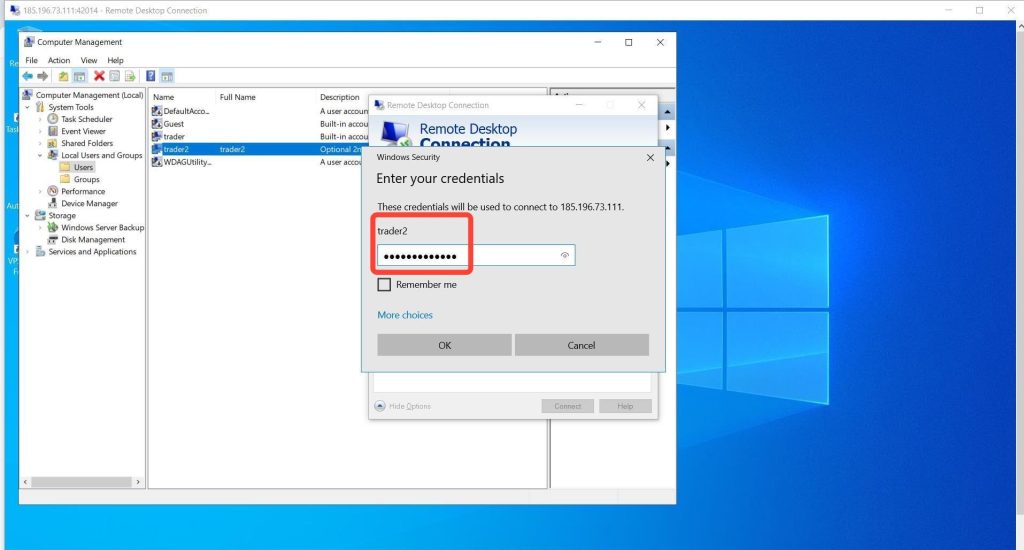
7. Congratulations! You have connected to the same server using 2 user accounts