Follow these instructions to reset your Virtual Desktop server password. This guide will walk you through the necessary steps to regain access to your server if you have forgotten your password
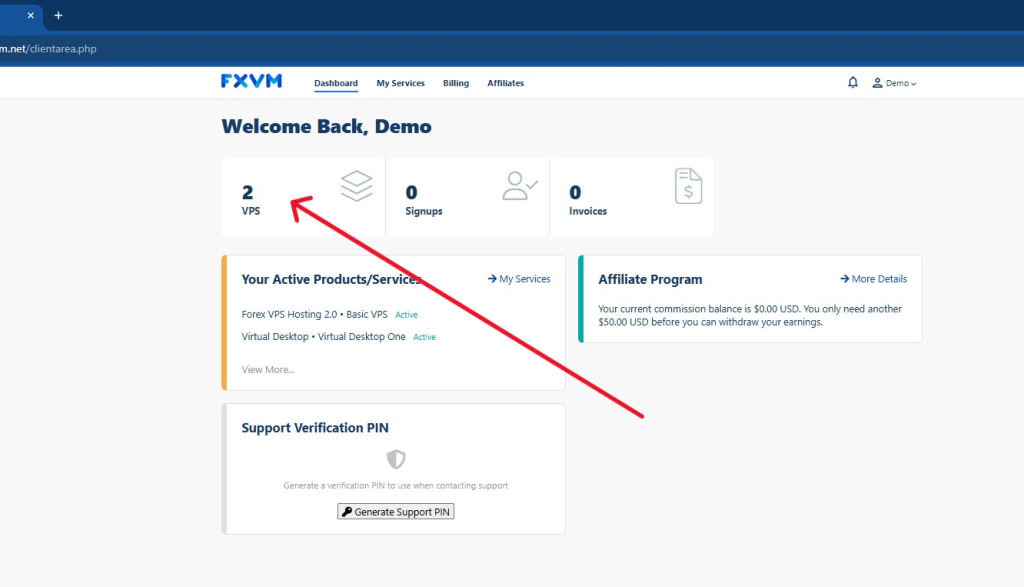
1. Login to your client portal here and click on VPS
2. Click the Virtual Desktop that you want to reset the password of
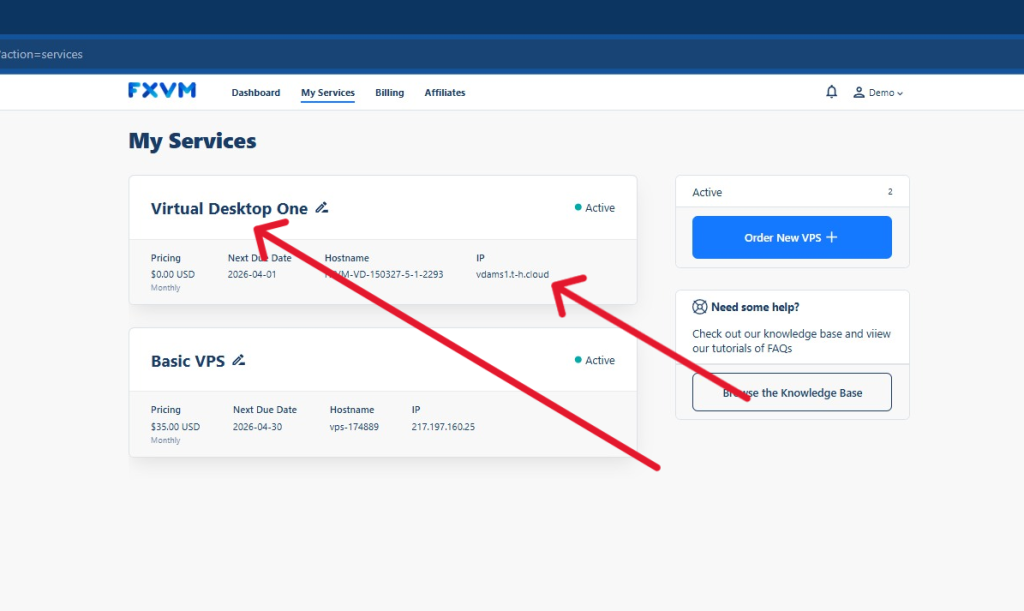
Tip! You can see the Virtual Desktop below as an identifier (if you have multiple servers)
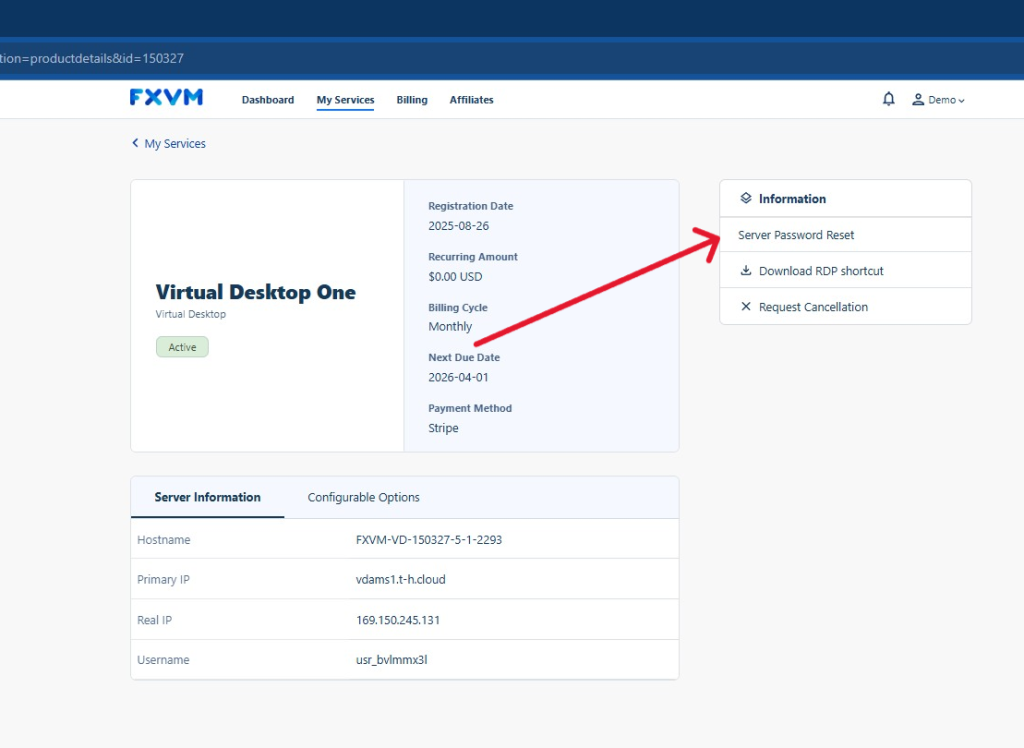
3. Click Reset Root Password button under the Server Information
4. Wait until you receive an email from us containing your new Virtual Desktop password
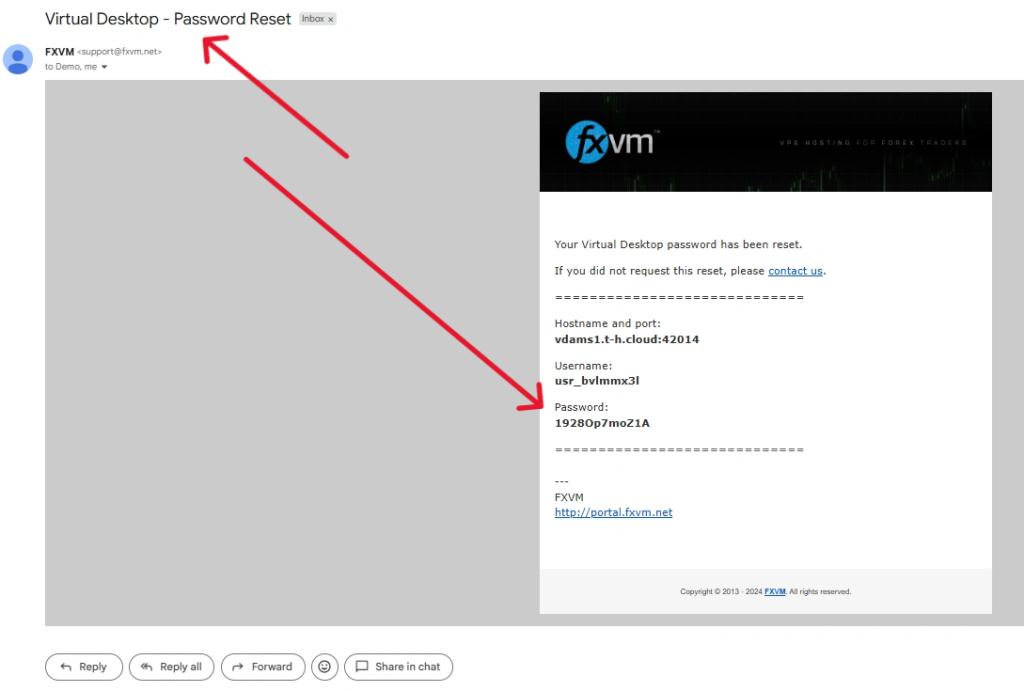
Tip! The Virtual Desktop – Password Reset email may be received in your email spam or trash folder as well so may need to check those too


