In this tutorial, we will show you how to connect to your Virtual Desktop using Remote Desktop Protocol (RDP) from Windows PC.
Windows Remote Desktop Protocol has been integrated into all Windows versions from XP on, so you don’t need to
install any additional programs.
You will receive an email after completing the payment and activating your FXVM VPS/Server. You need to take note of the following:
- Your FXVM VPS/Server IP address (Hostname: port),
- Username and Password.
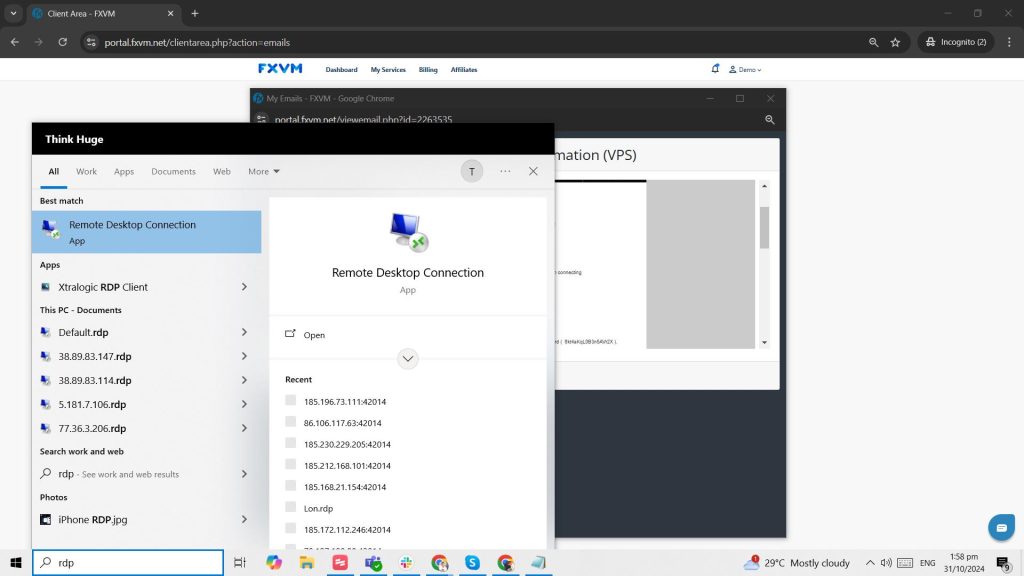
1. On your Windows PC, let’s start by clicking on the Start menu and start typing Remote Desktop Connection and press [Enter]:
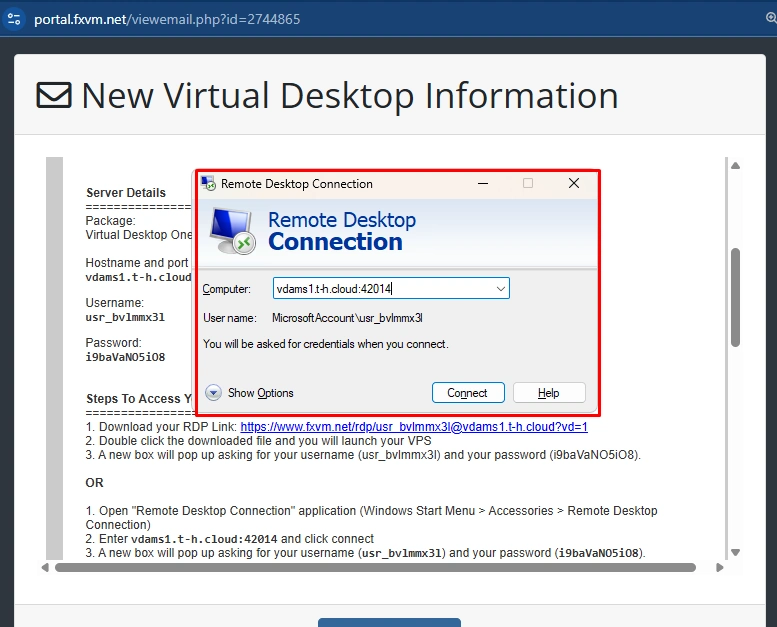
2. Now in General tab.
Enter your Virtual Desktop Hostname (Hostname:Port) in the field
Ciick Connect
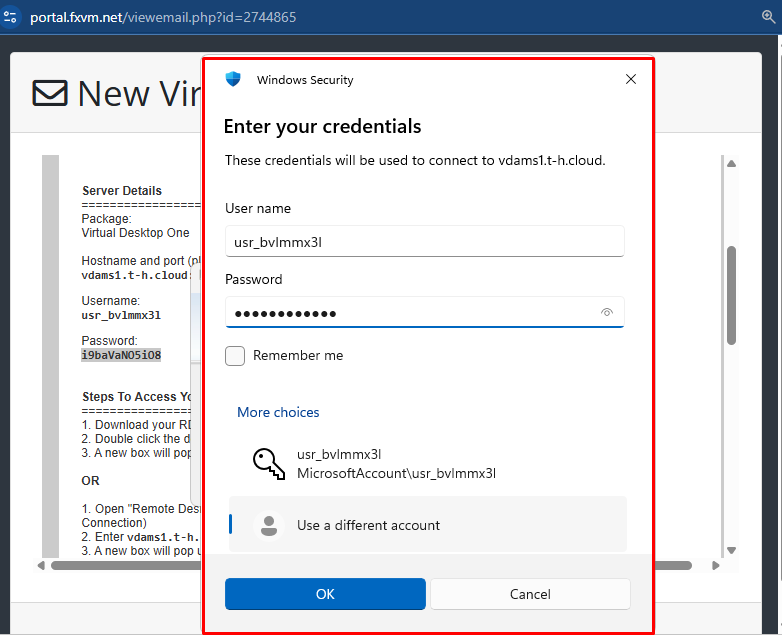
3. Enter your username and password in the fields below
Click OK
Tip: Take note that if your Microsoft email is logged in to this device, the username will show as your computer name. Click on More Options to change it to the “username” found in your email
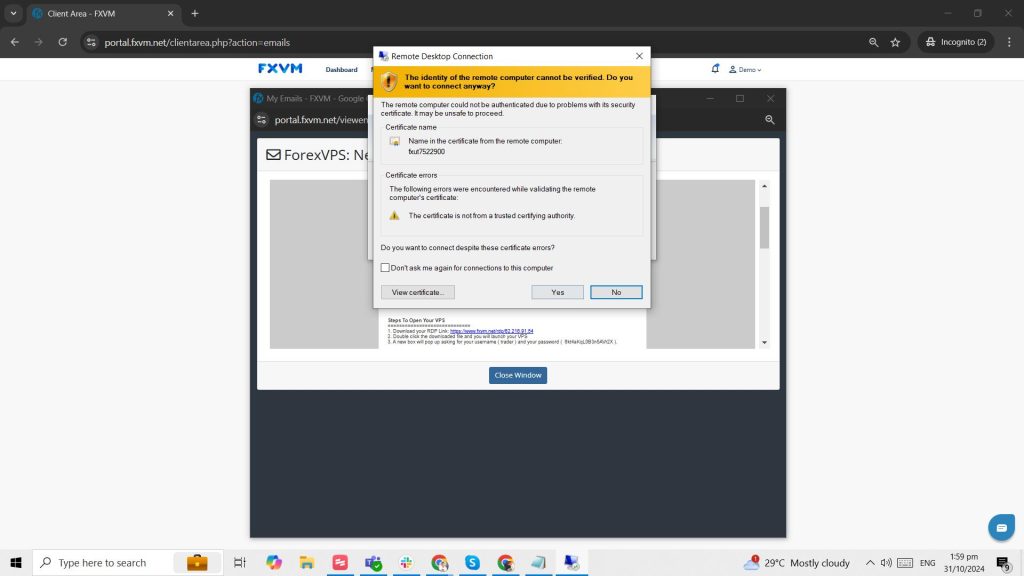
4. You will be asked to accept the FXVM VPS certificate
Please check the box for Don’t ask me again for connections to this computer
Click Yes
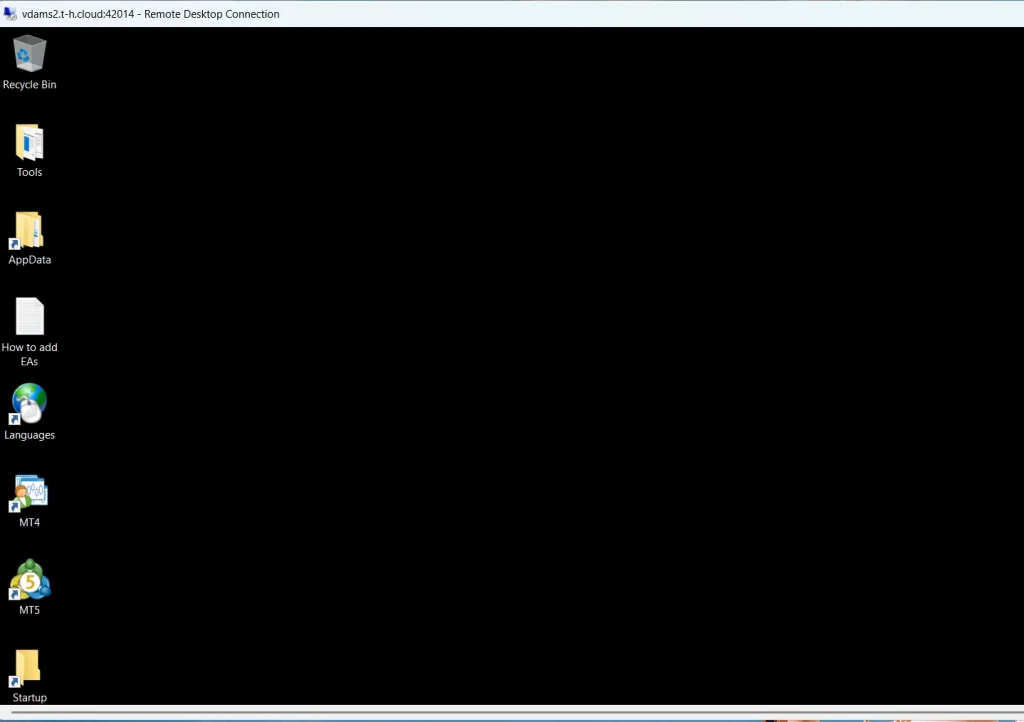
5. You should now be presented with a Windows Desktop for your Virtual Desktop
Take note that you will find a pre-installed MT4 and MT5 inside the server